11 August 2008

VS 2008 & .NET 3.5 SP1 Released

Visual Studio 2008 Service Pack 1 and .NET Framework 3.5 Service Pack 1 have been released.  You can read the details of what’s included as well as download the service pack here.

You can also read this post and this post from Brian Harry that covers some of the features in detail.

07 August 2008

VS 2008 & .NET 3.5 SP1 Almost Here

A while back I posted about Visual Studio 2008 & .NET 3.5 Service Pack 1 (Beta).  This was on May 14th.  Based on the download text for SQL Server 2008 RTM, Service Pack 1 is a required dependency and will be available after August, 11th.

vssp1

Also, the .NET Rocks PodCast #365 announces that SP1 is already available so the show must have been released a few days earlier than expected :-)  The description on the web site for this PodCast states that SP1 will ship around August 11th as well.

At any rate, it appears that SP1 will be available within the next week.

28 July 2008

VSLive! Las Vegas

Several weeks ago I was informed that I had been selected to present at this year’s VSLive! in Las Vegas.  Although I have presented at other conferences in the past (e.g. Heartland Developers Conference and Tulsa TechFest) this will be the largest conference I’ve presented at to date.  I have to admit, I’m pretty excited about it all.

I will be presenting on Using Team Build in the “Real” World on Thursday, October 16th at 08:30.

VSLive! Schedule Snippet

I’m looking forward to meeting new people and learning new things.  So, if you’re planning on attending VSLive! in Las Vegas this year and have an interest in Team Build (or Team Foundation Server in general) be sure to look me up.

24 July 2008

Omaha Team System User Group

We’ve had yet another successful gathering of the Omaha Team System User Group.  After moderating one of the Birds of a Feather sessions at last month’s Tech-Ed conference, I decided to try something similar with this month’s user group meeting format.

Rather than schedule a speaker for this meeting I decided that we would open the floor up for any Team System-related topics for discussion amongst the group.  Being the middle of the summer and having changed the format to not include a speaker I didn’t expect the same turnout that we typically get at other meetings.  We ended up with a total of 15 attendees which was perfect for sitting around a few tables and having some conversation.

Some of the topics we discussed included:

  • Certifications – are they important (i.e. do they really matter)?
  • Training – what types of training resources are available for Team System.
  • Gotchas – what kind of “gotchas” have other group members ran across while working with Team System.
  • APIs – what type of experience do other group members have with working with the TFS Object Model.
  • How is it being used – i.e. how is Team System being used throughout the community.
  • FinalBuilder – just bringing an awareness to the group that FinalBuilder has some great TFS support.
  • Etc.

We all had some great discussion for about an hour and a half and I think everyone in the room, especially myself, left with having learned something new.

The meeting format seemed to work out great so I believe this is something we’ll do at least once per year.

23 July 2008

DelayedBuildTask

A few days ago a fellow co-worker asked me if I could create a simple build task that would allow anyone on their team the opportunity to cancel a build, once it has been queued, before the build actually did anything.  The idea was simple:

  1. A new build gets queued.
  2. The build sends out an e-mail notification (via a custom task) informing the recipients that a new build has been queued.  The e-mail message also has a link that, when clicked, will cancel the build.
  3. The build waits a pre-determined amount of time (e.g. 5 minutes) giving the e-mail recipients a chance to cancel the build before it continues.
  4. If the build is not canceled, the build will proceed as usual once the delay has expired.

The driving reason behind this request was to allow any active testing to continue without being interrupted by a new build – i.e. the testers have the ability to cancel a build.

Building the custom task was pretty simple – it basically just sends out an e-mail message (based on a customizable HTML template) and then waits for the specified number of seconds (the default is 300 seconds).

The more interesting piece of the puzzle was creating a simple, one-page web site that, when called, will cancel a build.  The web page takes the build URI as its only parameter and utilizes the Team Foundation Server web services API to cancel the build.

All in all it worked out nicely.  If this sounds like something that may benefit your team, you can check it out on the MSDN Code Gallery here.  The source code as well as the binaries are available for download.

The next challenge (that was presented to me today) is to also include a link in the e-mail notification message that, when clicked, will instruct the build to continue immediately.  This one will take a little more thought…

Click here for more information on the DelayedBuildTask.

16 July 2008

TFS Power Tools – July 2008 Release

The July 2008 release of the Visual Studio Team System 2008 Team Foundation Server Power Tools has just been released.  Here is a summarized list of what is included with the tools:

  • Command line tool (TFPT.EXE)
  • Team Explorer IDE menu additions
  • Build Notification tool
  • TFS Best Practices Analyzer
  • Process Template Editor
  • Work Item Templates
  • Custom check-in policies
  • TFS Server Manager
  • TFS Users tool
  • Alert Editor

One of the more exciting changes, from my point of view, is the new user interface for managing TFS Alerts.  It is going to be nice having this capability available directly from within the IDE.

For a more detailed look at what’s included, take a look at this post from Brian Harry.

Click here to be taken to the download site.

15 July 2008

Cleaning Up Old Team Projects

A few days ago a co-worker sent out an e-mail asking if any of several team projects were still in use; if not, then they would be removed from Team Foundation Server.

Looking at the list it was easy enough to recognize a few active projects but others would take more investigation.  After sending my feedback I thought a custom utility might be helpful in the future for the next round of potential deletion candidates.  So, I decided to put the TFS Object Model (TFSOM) to use and created TFSunset (see screen shot below).

TFSunset uses the TFSOM to query the version control system and work item store for activity within a specified time range (e.g. the last 30 days).  All team projects for a given team foundation server are searched.  If no changesets have been created and no work items have been created/modified within the last 30 days (or whatever count you specify) then that team project will be listed.

Here is a screen shot showing the results of one search:

TFSunset

In the above example, the team project WalkingPage has not had any changeset or work item activity within the past two weeks.

Keep in mind that just because a team project is listed by this utility, that is no guarantee it has gone the way of OS/2 – you still need to perform your due diligence before deleting it from TFS.  However, this utility should be able to help narrow down the list.

I am planning on posting the source code to the MSDN Code Gallery in the near future.  For now, you can download the executable here.

Note: you will need to have Team Explorer 2008 installed prior to running this utility.

30 June 2008

Creating Team Build Types

I was answering a question related to programmatically creating team build types today and realized there weren’t too many examples on the web.  I didn’t see any examples that included all the details I was looking for – for example:

  • Adding the solution to be built to the new build type
  • Turning on/off test execution
  • Turning on/off code analysis

An example containing these details may exist, I just didn’t come across it during my initial search.

So, with that said, I decided to post the main part of the example application I put together to test out some concepts.  The items listed above are included in the example code below.

The example code includes two methods:

  • CreateBuildType – this method accepts six arguments that can be used to programmatically create a new build type.
  • VersionControlItemExists – this is a helper method that determines whether an item already exists in version control.

Although the example below can be used to create a new build type “as is”, there is always room for improvement.  For example:

  • Add a parameter to specify the default build agent.  Currently, the first build agent returned is used as the default when creating the build type.
  • Add a parameter to control the exact placement of the build type in version control (a common pattern is used in the example below).
  • Throw exceptions instead of displaying message boxes when exceptional conditions arise.  The message boxes were used for example purposes only.

With that said, here is the source code…

using System;
using System.Windows.Forms;
using Microsoft.TeamFoundation.Build.Client;
using Microsoft.TeamFoundation.Build.Common;
using Microsoft.TeamFoundation.Client;
using Microsoft.TeamFoundation.VersionControl.Client;
using Microsoft.TeamFoundation.VersionControl.Common;


private static bool CreateBuildType(string serverName, string teamProject, string buildName, string solutionPath, string dropFolder, bool runTests)
{
// Get a connection to Team Foundation Server
TeamFoundationServer tfServer = TeamFoundationServerFactory.GetServer(serverName, new UICredentialsProvider());

// Get a reference to a build service
IBuildServer buildServer = (IBuildServer)tfServer.GetService(typeof(IBuildServer));

// Get a list of build agents associated with the specified team project
IBuildAgent[] buildAgents = buildServer.QueryBuildAgents(teamProject);

if (buildAgents.Length == 0)
{
MessageBox.Show(
@"The specified Team Project does not have any build agents associated with it. Please create at least one build agent.",
"No Default Build Agent Found",
MessageBoxButtons.OK, MessageBoxIcon.Warning);

return false;
}

// Create the new build type definition
IBuildDefinition buildType = buildServer.CreateBuildDefinition(teamProject);

// Specify the name of the new build type
buildType.Name = buildName;

// Specify where the new build type should be stored in version control
buildType.ConfigurationFolderPath = string.Format(@"$/{0}/TeamBuildTypes/{1}", teamProject, buildName);

// Set the default build agent
buildType.DefaultBuildAgent = buildAgents[0];

// Set the default drop location
buildType.DefaultDropLocation = dropFolder;

if (!VersionControlItemExists(tfServer, buildType.ConfigurationFolderPath))
{
IProjectFile projectFile = buildType.CreateProjectFile();

// Add a new solution to be built to the project
ISolutionToBuild solution = projectFile.AddSolutionToBuild();

// Set the path of the solution to build
solution.SolutionPath = solutionPath;

// Specify whether tests should be ran or not
projectFile.RunTest = runTests;

// Run code analysis if the project is setup to do so
projectFile.RunCodeAnalysis =
CodeAnalysisRunType.Default;

// Save the project file
projectFile.Save(buildType.ConfigurationFolderPath);

// Save the new build type
buildType.Save();
}
else
{
// The specified build type already exists
MessageBox.Show(
"The specified Build Type already exists. Please specify a different Build Type name.",
"Build Type Already Exists",
MessageBoxButtons.OK, MessageBoxIcon.Warning);

return false;
}

return true;
}


private static bool VersionControlItemExists(TeamFoundationServer tfServer, string itemPath)
{
string projectFilePath = VersionControlPath.Combine(itemPath, BuildConstants.ProjectFileName);

return ((VersionControlServer)tfServer.GetService(typeof(VersionControlServer))).ServerItemExists(
projectFilePath, VersionSpec.Latest, DeletedState.NonDeleted, ItemType.File);
}

17 June 2008

TFSExamples.com – A New Site

As of late, I’ve started working on several Team Foundation Server API-based examples (some of which are starting to show up as blog postings).  Although the Team Foundation Server SDK does include some examples, it’s not always easy to locate the example you need (assuming it’s even there).  There are several blogs containing various TFS API examples, but again, the full details may be spread across several postings or even separate sites.

Several months ago, Grant Holliday created the TFSBuild.com site dedicated to MSBuild and Team Foundation Build recipes.  I decided to take a similar approach and registered the site TFSExamples.com.  I utilized the same ScrewTurn wiki software and customized it to the needs of the new site.  The intent is to compile a library of Team Foundation Server API examples making it simple to get started with a project based on the TFS object model.

There are only a couple of examples on the site at the moment but I plan on adding several more over the next few days.  I also hope that others will come across the site and add their own examples.

Some of the current functionality on TFSExamples.com includes:

  • Add New Example – displays instructions on adding a new example to the wiki
  • Browse All – displays a list of all pages in the wiki
  • Browse Categories – displays a list of all categories in the wiki
  • Request Example – allows you to request a specific example be added to the site

If you have any examples based on the TFS object model that you would like to publish, please check out TFSExamples.com and add them accordingly.

15 June 2008

Display Connect to Team Foundation Server Dialog

Over the past few days I’ve been working on a simple TFS utility that will provide the ability to import and/or export Areas and Iterations.  The overall intent of this exercise is not only to reinvent the wheel but to also gain some experience in writing Visual Studio Add-ins.  At the same time, I am planning on posting “interesting” tidbits of code along the way.

Currently, I am still in the phase of writing the utility (it will first be a standalone utility and later, a Visual Studio Add-in) and had the desire to display the Connect to Team Foundation Server dialog…
Connect to Team Foundation Server Dialog

I suspected there was an API for this dialog; I only needed to find it – and I did.  Paul Hacker has a nice post that explains the basics for achieving this goal using the DomainProjectPicker class.  His post explains very nicely how to get it to display the dialog in one mode – that of allowing only a single project to be selected from the dialog.  However, there are several variations on what type of functionality is available based upon how you call the API.  The following sections cover the various scenarios for displaying the Connect to Team Foundation Server dialog.

Server Selection Only

This mode allows you to select a Team Foundation Server that has been previously registered and/or allows you to register a new Team Foundation Server.  By default, the resulting dialog looks like this:
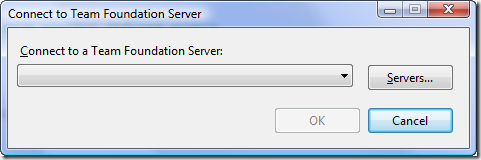
Connect to Team Foundation Server Dialog - Server Only Select - Default

The code to display this dialog is fairly simple:

public void DisplayTfsConnectionDialog()
{

// Initialize the TFS project picker object
DomainProjectPicker projectPicker = new DomainProjectPicker(DomainProjectPickerMode.None);

// Display the dialog
if (projectPicker.ShowDialog() == System.Windows.Forms.DialogResult.OK)
{
// Do something...
}
}

Notice the argument value passed into the DomainProjectPicker constructor – DomainProjectPickerMode.None.

You can initialize the selected server by setting the project picker’s SelectedServer property. To set a default server, add the following lines of code to the above example somewhere prior to calling the ShowDialog method:

            // Select a default server
TeamFoundationServer defaultServer = TeamFoundationServerFactory.GetServer("tfs-dev");
projectPicker.SelectedServer = defaultServer;

I’ve hard-coded the server name (“tfs-dev”) for example purposes.  When the modified code is ran, the following dialog is displayed:
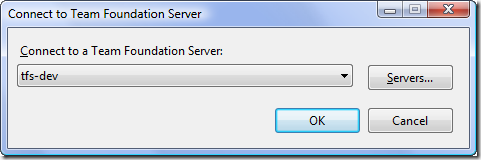
Connect to Team Foundation Server Dialog - Server Only Select - Initialized

The SelectedServer property returns an instance of TeamFoundationServer for the selected server.

Single Project Selection

This mode allows you to select a team project as well as a server.  In this mode, you can select only one project.  The resulting dialog looks like this:
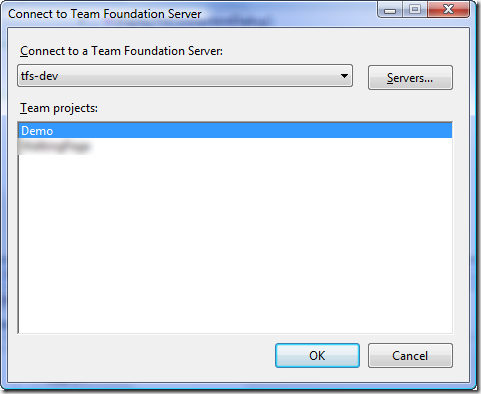
Connect to Team Foundation Server Dialog - Single-Project Select - Default

You need to make one simple modification to the code example above to display this version of the dialog – change the DomainProjectPicker constructor argument to DomainProjectPickerMode.AllowProjectSelect.  To retrieve the name of the selected project, just check the SelectedProjects property.  This property returns an array (there will be only one element in this case) of ProjectInfo objects.  For example, to display the name of the selected project, modify the above example accordingly:

            // Display the dialog
if (projectPicker.ShowDialog() == System.Windows.Forms.DialogResult.OK)
{
MessageBox.Show(projectPicker.SelectedProjects[0].Name, "Selected Project");
}

Multiple Project Selection


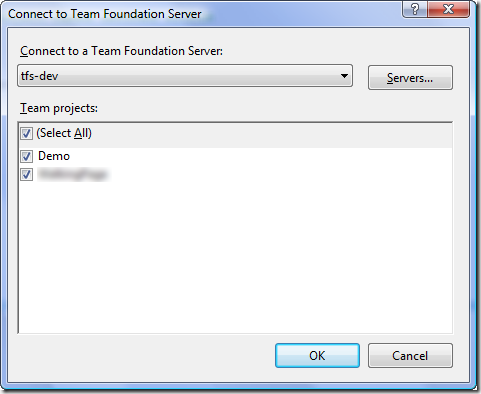
This mode is similar to the single project mode above except it allows you to select one or more projects.  In this case, you must combine two values for the DomainProjectPicker constructor argument: DomainProjectPickerMode.AllowProjectSelect | DomainProjectPickerMode.AllowMultiSelect.  This will result in a dialog like this one:
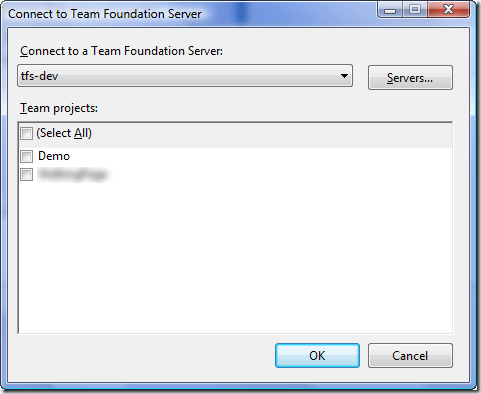

Connect to Team Foundation Server Dialog - Multi-Project Select - Initialized 


You can retrieve the selected project(s) by accessing the SelectedProjects property just like in the example above with the exception that there may be more than one element in the array.


Disabling Server Selection


You can also combine the DomainProjectPicker constructor arguments as listed above with the value DomainProjectPickerMode.DisableServerSelect.  This has the effect of disabling the Server drop-down list and the Servers… button on the dialog.  For example:
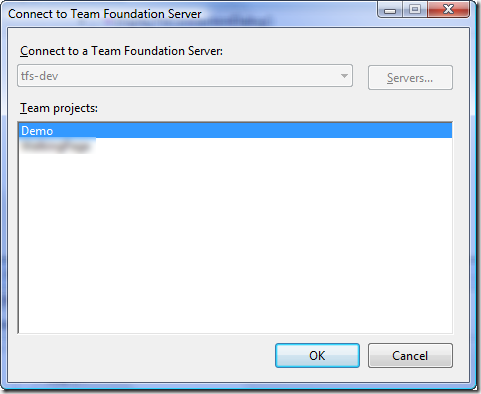

Connect to Team Foundation Server Dialog - Single-Project Select - No Server 


Selecting a Default Project


Just as you can select a default Team Foundation Server, you can also select one or more default projects.  There is one caveat - you can only select default projects if you’re using Multiple Project Selection mode.  I really don’t understand why the creators of this particular API chose not to allow a default project selection for Single Selection Mode, but that’s just the way it is.


To set one or more default projects, you must initialize the DefaultSelectedProjects property.  This property is a SortedList where the key is the URL of a specific Team Foundation Server and the value is an ArrayList of projects to be selected for the server defined by the key.  Here is a code example that selects the “Demo” project by default when displaying the connection dialog:


            // Initialize the TFS project picker object
DomainProjectPicker projectPicker = new DomainProjectPicker(DomainProjectPickerMode.AllowProjectSelect | DomainProjectPickerMode.AllowMultiSelect);

// Select a default server
TeamFoundationServer defaultServer = TeamFoundationServerFactory.GetServer("tfs-dev");
projectPicker.SelectedServer = defaultServer;

// Select a default project (in this case, the "Demo" project)
ICommonStructureService css = (ICommonStructureService)defaultServer.GetService(typeof(ICommonStructureService));
SortedList defaultServerList = new SortedList();
ArrayList defaultProjectList = new ArrayList();
defaultProjectList.Add(css.GetProjectFromName(
"Demo").Uri.ToString());
defaultServerList.Add(defaultServer.Uri.ToString(), defaultProjectList);
projectPicker.DefaultSelectedProjects = defaultServerList;

// Display the dialog
if (projectPicker.ShowDialog() == System.Windows.Forms.DialogResult.OK)
{
MessageBox.Show(projectPicker.SelectedProjects[0].Name, "Selected Project");
}

The following dialog is displayed using the above code example:
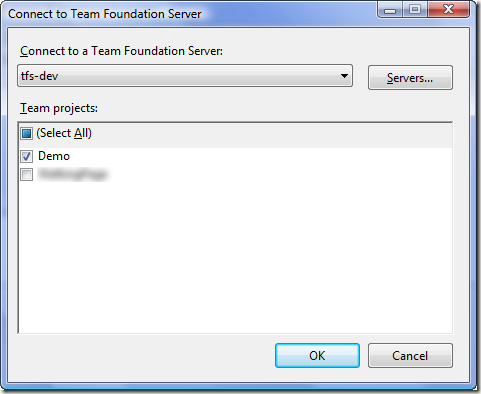

Connect to Team Foundation Server Dialog - Multi-Project Select - With Default Selection


That pretty much covers the various scenarios.  Hopefully the above code examples will help out the next person looking for similar functionality.