04 June 2008

TFS BOF Session - Check!

I just completed my first Birds of a Feather session here at Tech-Ed 2008.  I moderated the session on Using Microsoft Visual Studio Team Foundation Server in your Organization.   We had a great turnout with around 70-80 attendees in the audience.  The discussions covered a wide range of topics, including:

  • Issues related to upgrading from TFS 2005 to TFS 2008
  • Moving/changing TFS SharePoint servers after the installation has been completed
  • Migrating Visual SourceSafe databases to Team Foundation Server version control
  • Integrating Microsoft Project Server with Team Foundation Server
  • Handling 3rd party controls in your application's automated builds
  • Configuration of Team Projects on your Team Foundation Server(s)
  • Many others

There was some great discussion among the members of the audience - some with similar experiences and others with widely varying experiences.  We also had a Team System MVP in the room so he was able to address several of the issues in detail.

We actually ran out of time before we were able to get through the list so if I can retrieve the questions list from the session room I will post some links for further information on the remaining topics.

Tech-Ed 2008 - Day One

Well, day one of Tech-Ed 2008 is in the books.

The morning started off with Bill Gate's final public keynote as CEO of Microsoft.  The first portion of the keynote was spent watching a video that enacted what Bill's last day of work might be like at Microsoft.  It was a entertaining video with a lot of high-profile cameos by people such as Warren Buffet, Hillary Clinton, Barack Obama, John McCain, Bono (of U2), Matthew McConaughey, George Clooney, Al Gore, et. al.  Afterwards, Bill, along with the help of some others, spent some time covering various technologies including Silverlight (get product name), Visual Studio "Rosario" (including some cool architecture features not yet available in the CTP), SQL Server 2008, Microsoft Robotics, etc.  There were a few product-related announcements made during the keynote but nothing major.  You can read about them on Somasegar's blog.

One of the sessions I attended was Visual Studio Team System: Today and T tomorrow by Brian Harry.  I was looking forward to meeting Brian because of my personal interest in Team Foundation Server.  I finally caught up with him later in the day and got the chance to introduce myself and speak with him for just a minute (there was a line behind me).  So, check that goal off my Tech-Ed "to do" list :-)  There weren't any real surprises in Brian's session if you've been keeping up with the Visual Studio 2008 Service Pack 1 Beta and Visual Studio "Rosario" but it was still an informative and interesting session.

I also attended the session .NET Interface-Based Programming by Juval Lowy.  He spent his time talking about how we should be developing interface-based software instead of object-oriented software because interfaces are the path to code reuse.  He made some very good points during his session which I plan on investigating a great deal over the coming weeks.

Although I don't really work with Windows Workflow Foundation (WF), at least not yet, I attended the session Introduction to Windows Workflow (services) by Ron Jacobs.  Mainly because I've watched quite a few of the ARCast.TV videos in the past with Ron and I wanted to see him in person.  He does as great of a job presenting in person as he does on "TV" although I felt he should have plugged Philip Wolfe's TLC session More Windows Workflow Foundation Hosting Options than You Thought when hosting-related questions came up :-)

All in all, a great start to the Tech-Ed week!

02 June 2008

Tech-Ed 2008 - Day Zero

After roughly eight hours of travel time (including layovers) I finally made it to Orlando.  This is my third time here in Orlando for a Microsoft conference (one PDC and, now, two Tech-Eds) and it's nice to be back.  This year I am traveling with another Tech-Ed veteran, and co-worker, Philip Wolfe.

We basically went straight from the airport to the hotel just long enough to drop our luggage off and head over to the conference center.  We planned on attending the INETA mini-summit and arrived at the conference center about 15 minutes before the end of the session.  However, the security personnel would not let us pass through to the conference room until we went through the registration line.  There really wasn't a line so we were through fairly quickly.  We ended up getting to the mini-summit right as it was ending so we were still able to get the swag as well as meet some of the INETA personnel (e.g. Nancy Mesquita, David Silverlight, etc.) which allowed me to finally put some faces with names.

Afterwards, we headed on over to the Glo Lounge for the Party with Palermo.  We arrived pretty early and there were already quite a few people there.  Shortly after arriving, there was a piñata game with the idea being that various attendees would get a chance at breaking the piñata and releasing the prizes imprisoned within it.  However, the first participant knocked the piñata off the hook so the piñata was ripped open and the various prize tickets thrown out on the floor.  I ended up with a few Starbucks gift cards, however, one lucky attendee walked away with an XBox 360.

After hanging out at the Glo Lounge for a while we ended up heading out in search of some grub.  We ended up at Adobe Gila's where I has some great chicken enchiladas.

I'm looking forward to a great week of learning and networking starting tomorrow morning with the keynote from Bill Gate's.  Also, I will be moderating a Birds of a Feather (BOF) session on Wednesday (Using Microsoft Visual Studio Team Foundation Server in your Organization) and Philip will be presenting the Interactive Theater Session More Windows Workflow Foundation Hosting Options than You Thought on Thursday.  It's going to be a fun week!

28 May 2008

Omaha Team System User Group

Well, the 2nd Omaha Team System User Group meeting is, as they say, in the books!  We had a great turnout with about 25 attendees that showed up to listen to Mike Douglas speak about TFS build automation and the coolness factor of incorporating (authentic) stoplights into the build process.

Mike also demonstrated his latest CodePlex contribution - Team Deploy.  Team Deploy is a set of custom MSBuild tasks that provide functionality for deploying MSI files as well as controlling X10 devices (e.g. stoplights, lava lamps, etc.).  Some of the tasks included are:

  • Install Task - installs an MSI on a remote machine.
  • Uninstall Task - uninstall an MSI from a remote machine.
  • Kill Process Tasks - kills a process on a remote machine.
  • Deploy Task - utilizes a deployment script to automate the installation of MSIs on a set of remote machines.  This is the most common task to be used in the collection.
  • Start Service Task - starts a Windows Service on a remote machine.
  • Stop Service Task - stops a Windows Service on a remote machine.
  • Device Controller Task - allows you to control X10-enabled devices from your builds.

Once again, our meeting was sponsored by Farm Credit Services of America which provided pizza, pop, a great place to mingle prior to the presentation, and an excellent meeting room for the presentation.

You can download the PowerPoint slides here.

14 May 2008

VS 2008 & .NET 3.5 SP1 Beta

The beta release of Service Pack 1 for Visual Studio 2008 and .NET Framework 3.5 is now available for download.  There are a ton of changes in this update.  Some of the high-level changes include:

  • Performance improvements for WPF-based applications (with no code changes)
  • Improved designers for building WPF applications (can't wait to see this!)
  • Full support for SQL Server 2008
  • The introduction of the ADO.NET Entity Designer (very cool!)
  • Improvements to Team Foundation Server
  • Improvements for web development
  • Improvements to the C# and VB.NET experience in the IDE

For example, one of the interesting improvements on the client side is the introduction of the ".NET Framework Client Profile".  This option is set at the project level and allows the use of .NET Framework binaries that are commonly used by client-side applications (e.g. Windows Forms, WPF, and WCF).  It does not include the ASP.NET binaries, for example.  This option allows you to build client-side applications that can make use of the smaller .NET Framework Client, which is smaller, and therefore quicker to download and install.

There are also a ton of modifications relating to Team Foundation Server (which is where a lot of my personal interests are focused).  One of the (many) changes include version control of unbound files.  While this may not seem all that exciting to some, how many times have you opened a TFSBuild.proj file and stared typing only to realize that the file is not automatically checked out like other files that make up a solution?  Although I haven't tried this beta out (yet) I would hope this feature would resolve this issue.

There are a lot of features to test out so I hope to blog about some of these in the near future.  You can read the full details on the the Team Foundation Server updates here from Brian Harry.

To see what exciting changes are included in Visual Studio and the .NET Framework, check out this post by Scott Guthrie.

You can read Microsoft's official release regarding the beta release here.

The expected release date of the Visual Studio/.NET Framework 3.5 SP1 is summer, 2008.

11 April 2008

Tech-Ed '08 Birds of a Feather Session

I have been planning on attending this year's Tech-Ed "Developers" conference for a while now.  This will be my 3rd trip to the Tech-Ed conference so this year I decided to see if I could become more involved and submitted a couple topics for Birds of a Feather (BOF) sessions.  I just found out a couple of days ago that my submission, Using Team Foundation Server in your Organization, has been accepted.  This will be my first time moderating a BOF session and I am looking forward to it.  I have no doubt that we will be able to learn a lot from each other regarding the use of TFS within our organizations.  So, if you have an interest in discussing TFS in your organization, plan on attending this BOF session on Wednesday, June 4th, from 10:15am - 11:30am.  I look forward to meeting new people and learning new things.

29 February 2008

PowerCommands for VS 2008

A short while ago I wrote a post about the MSDN Code Gallery.  For all intents and purposes I liked what I saw with a few exceptions (nothing major).  I even posted a simple Send Email Message snippet just to try it out. 

Today, I noticed a new post that I think will prove to be very useful to many Visual Studio 2008 users - PowerCommands for Visual Studio 2008.  This is a set of extensions for the Visual Studio 2008 IDE that offer various types of functionality, including:

  • Collapse Projects
  • Copy/Paste Class
  • Copy/Paste References (this will be hugely popular in my opinion)
  • Copy As Project Reference (another popular one)
  • Edit Project File
  • Open Containing Folder (very nice!)
  • Open Command Prompt (also very nice!)
  • Unload/Reload Projects
  • Remove and Sort Usings (C# only)
  • Extract Constant
  • Clear Recent File/Project List (yet another popular one)
  • Transform Templates
  • Close All

You can download the MSI, a Microsoft Word 2007 "read me" document, and/or the source code.  I installed the MSI, ran Visual Studio, and was able to access the new functionality without any issues.

This set of extensions will no doubt become popular among Visual Studio users.  With any luck, new features will be added along the way :-)

Click here to visit the PowerCommands for Visual Studio 2008 home page.

TFS 2008 Setup/Admin FAQ

A new forum post has been added to the Team Foundation Server - Setup forum titled TFS 2008 Setup and Administration FAQs.  The intent of this forum post is to deliver commonly asked questions and answers relating to the setup, configuration, and administration of Team Foundation Server 2008.  The post has been "pinned" to the top of the forum so it's easy to find.

Here is a list of questions that are answered in the post as of the time of this writing:

  • When installing a new Team Foundation Server, is there a way to use an existing SharePoint Web Application?
  • When creating a new TFS Project, is there a way to use an existing SharePoint site collection?
  • When creating a new TFS Project, is there a way to create a sub-site under an existing SharePoint site collection?
  • Why is it important to uninstall Team Foundation Server 2008 beta releases prior to installing Team Foundation Server 2008 RTM release?
  • Why is it important to uninstall Team Foundation Server 2005 from the data-tier server prior to installing Team Foundation Server 2008 in a dual-server configuration?
  • Is Team Foundation Server 2008 supported on Windows Server 2008?
  • Is Team Foundation Server 2005 supported on Windows Server 2008?
  • Is Team Explorer 2005 compatible with Team Foundation Server 2008?
  • Is Team Build 2005 supported on Windows Server 2008?

See the post for answers to the above questions and be sure to bookmark the site as it's surely going to grow.

Also, while you're there, check out the other post that's "pinned" just below the FAQ - TFS/Team Explorer 2008 Troubleshooting Guide.  This post contains some good tips and workarounds.

18 February 2008

So, what's the deal with $, @, and % anyway?

So, you've decided that the default build script that's built by the "New Build Type" wizard doesn't quite do everything that you need it to do. So, you click on over to the Version Control Explorer, check out the TFSBuild.proj file, and dive in!

At first glance, everything looks simple enough, you have various combinations of Targets, Tasks, and Properties. Things start to get a little interesting as you explore the concept of Item Groups. However, you start to notice a subtle difference with how various properties (or at least what look like properties) are accessed - e.g. some begin with '$', some with '@', and yet others with '%'. What's going on here? What's the difference? Before we can answer this question, we need to take a look at Properties and Items.

Properties
You can think of properties as MSBuild's version of a variable (as you might use it in some programming language such as C#). Once you declare a property, you can use it throughout your build script to reference whatever value it may hold. You create a property by defining an element within a PropertyGroup element. For example:

<PropertyGroup>
<WebBinSource>Binaries</WebBinSource>
</PropertyGroup>

In the above example, the property is named "WebBinSource" and can be referenced in your build script as $(WebBinSource). You can create as many properties within the PropertyGroup element as you like. You can also create as many PropertyGroup elements as you like.

Aside from the obvious advantages of using properties within your build script (i.e. so you don't have to hard-code values in multiple places) another nice feature is that you can pass in custom property values on the MSBuild command line. For example:

MSBuild.exe MyProject.proj /p:WebBinSource=Bin

These properties can also be specified in the Team Explorer "Queue Build" dialog:
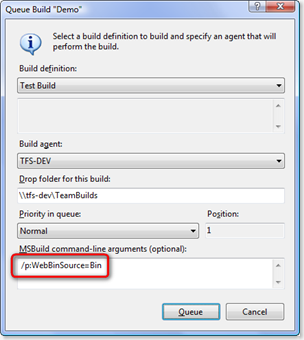
Queue Build Dialog

You can also reference environment variables using the same syntax. For example, you can reference the environment variable PATH using the syntax $(Path). If you declare a custom property with the same name as an existing environment variable, the custom property will override the environment variable and its value will be used when referenced.

MSBuild defines several reserved properties that you can utilize in your build scripts. There are also several customizable properties available within Team Foundation Build for use within your TFS build scripts.

Items
Items allow you to create user-defined collections which can then be used an input arguments for MSBuild tasks. The task can then act on the individual items within the collection as needed. You create an item collection by defining elements within an ItemGroup element. For example:

<ItemGroup>
<SourceFiles Include = "default.aspx"/>
<SourceFiles Include = "register.aspx"/>
</ItemGroup>

NOTE: You can also include multiple items within a single element by separating each item with a semicolon. For example:

<ItemGroup>
<SourceFiles Include = "default.aspx;register.aspx"/>
</ItemGroup>

In this example, the item list is named "SourceFiles" and can be referenced in the build script as @(SourceFiles). For example, you may have a custom task that deploys a collection of files to a web server:

<Target Name="AfterBuild">
<DeployWeb Sources="@(SourceFiles)" />
</Target>

Depending upon the task using the item collection, it may support the use of wildcards in the item definition. You can also change the item delimiter to be something other than the default semicolon for custom processing.

Although items are a useful feature, they're even more useful if you can associate metadata with them.

Metadata
Each individual item contained within an item collection may also contain metadata information. For example, a collection of files to be copied may contain the attributes of each file (e.g. read only, archive bit, etc.) or possibly the creation and last updated date/time.

You can associate metadata with individual items by adding child elements to the individual item elements. For example:

<ItemGroup>
<SourceFiles Include = "default.aspx">
<Copy>true</Copy>
</SourceFiles>

<SourceFiles Include = "Web.config">
<Copy>false</Copy>
</SourceFiles>

</ItemGroup>

Using this example, the following task will copy all web files that have a metadata item of Copy with a value of true:

<Target Name="AfterBuild">
<DeployWeb Sources="@(SourceFiles)" Condition=" '%(Copy)' == 'true' />
</Target>

Also, any time a new item is created, there is a set of "well-known" metadata created and assigned to each item.

Putting it All Together
So, now when you see items prefixed with a '$', you'll know that it's referencing a property whereas items prefixed with a '@' are referencing a collection of items to be processed. If a task (or condition) needs access to the metadata for an individual item (or collection of items) then you will see the metadata items being prefixed with the '%'.

Hopefully this has cleared up the differences between the different types of "variables" in MSBuild and your Team Foundation Build scripts.

References

08 February 2008

MSDN Code Gallery

Although it's been about two weeks since Microsoft launched its new MSDN Code Gallery, I am just now getting around to checking it out.

At first glance, it appears there are quite a few similarities between the MSDN Code Gallery and Microsoft's CodePlex site (another open source site provided by Microsoft and hosted on top of Team Foundation Server).  So, what are the differences between the two sites?  Basically, it boils down to project management: Microsoft's CodePlex site is suited for open source projects requiring some level of project management whereas the MSDN Code Gallery is mainly an on-line repository of code snippets and example projects (without any of the project management functionality).

What I like:

  • The MSDN Code Gallery is a visually pleasing site.
  • Quick and simple site for accessing code snippets (without having to pull down entire projects to get at a small snippet).
  • "Tagged" resource pages allowing for simple categorization of code snippets and examples.
  • Creating a new resource page is relatively easy.

What I don't like:

  • Not a lot of content.  As of a few minutes ago, there were only 75 "resources" available for download on the site.  However, this is still a new site and I'm sure it will grow a lot over time.
  • Figuring out the navigation and search features takes a little getting used to.  It's nice once you figure it out but is not intuitively obvious.
  • You must have a Windows Live ID (formerly known as Microsoft Passport) to create new resource pages.  The CodePlex site does not have this "limitation" (possibly due to the integration issues with TFS).
  • The instructions for setting up the resource page (correctly) and publishing it are not clear.  I followed the instructions and published my first code snippet (for sending e-mail messages in C# or VB.NET) only to receive an e-mail message a few hours later telling me that my resource page "appeared" to still be in testing - which it wasn't.  I've sent an e-mail asking for specific details as to what the actual problem is so I can get that corrected.
  • The only license model available is the Microsoft Public License (Ms-PL).  This license is fairly permissive (no pun intended) but what does it hurt to have a few more choice (similar to the CodePlex site)?
  • The search functionality is fairly basic.  Having some extended search features such as language choice (e.g. C#, VB.NET, JavaScript, etc.), submission date, etc. would be beneficial.  The krugle search engine does a good job in this area (as an example).

I've always tried to make use of example source code snippets as I develop software just so I don't have to re-invent the wheel.  However, a lot of the source code resources on the web tend to have an abundance of poorly written/tested snippets or the snippets are out of date.  I will be interested in seeing how Microsoft deals with this issue over time (if at all).  Until then, I'll enjoy yet another snippet repository.

Follow Up: I received some more details about why my resource page "appeared" to still be in testing... Basically, I was told that my resource page needed to be "spruced" up with a little more information.  I must admit that my initial page was pretty sparse, but let's face it, a simple "send e-mail" snippet doesn't take a lot of explanation.  However, I can understand Microsoft's viewpoint that they do not want a lot of mostly-empty (or "ugly") pages comprising the MSDN Code Gallery.  So, I've updated the SendEmail resource page to hopefully meet the (not-so-well-documented) publishing requirements.